








A couponing friend gave me this tip a while ago, but for some reason I didn't take the time to do it until now. Well, don't wait because you could be saving a bundle on your printer ink with a this simple little tip!
If you haven't switched your printer settings yet, here's a quick and easy tutorial that will save you a bundle on ink!
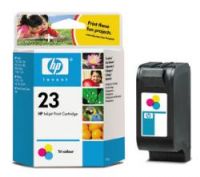
Once you are logged on to you computer, take the steps below:- Open your START menu, click on "Control Panel."
- In the Control Panel box, click on "Printer."
- Find the printer you use in the list, right click over it (a small box will pop up).
- Click on "Printing Shortcuts" tabs at top.
- Your current settings are probably "General Everyday Printing." You'll need to scroll down the list and select "Fast/Economy Printing."
- In the bottom right corner, click on "Apply."
- Click "OK" and you're done!
You'll be amazed at how quickly your printer will spit out your printing jobs! With this setting, it will only print in black and white, so if you come across a coupon that requires it be printed in color, you'll need to switch your settings back.
I hope this helps you save a bundle on your printer ink!!
I hope this helps you save a bundle on your printer ink!!




3 Comments:
I had no idea you could set this infinitely. Awesome! I try to remember to go in and manually do it every time I print.
:)
Come by and see me over at Free2BeFrugal!
Thanks for this tip! Any suggestions on how to cut the cost of replacing ink cartridges?
My lowest setting on my printer is called Fast Draft and when I have printed on this setting, they coupons will usually not scan, at least not at Krogers, where I just had a cashier type in small bundle of coupons manually. He was not happy about it and I was a little embarrased. So I set my printer up one setting. Is it okay to print coupons like from coupons.com in Black and White. How do you know if you need color?
Post a Comment